
The Project Progress feature shows how much time your team has spent on projects.
To view your “Project Progress”, open dashboard.timebee.app. From the sidebar, click “Reports”. The dropdown menu will show you a list of reports for users to choose from. Click “Project Progress” to see the total hours tracked per project and individual tasks.
The projects and tasks shown in Project Progress are created by the admin in the ‘Projects and Tasks’ settings.
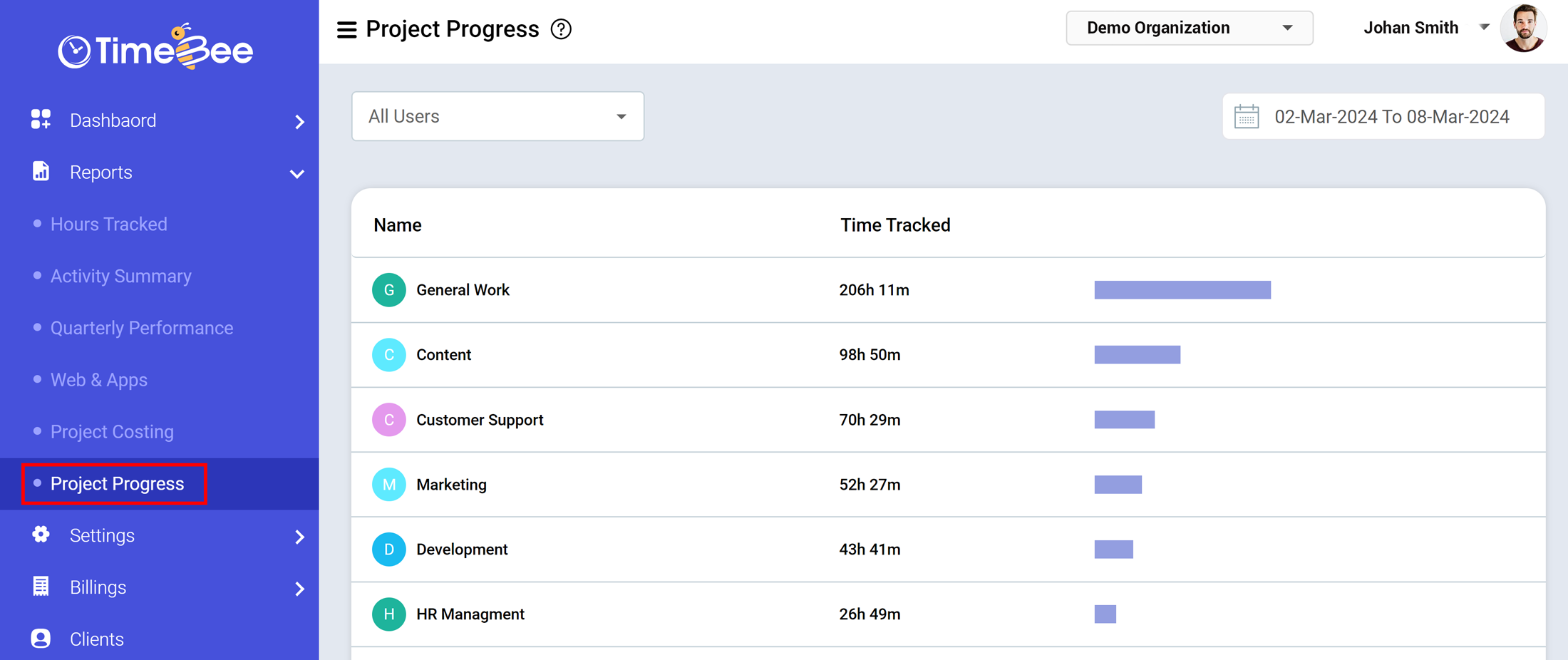
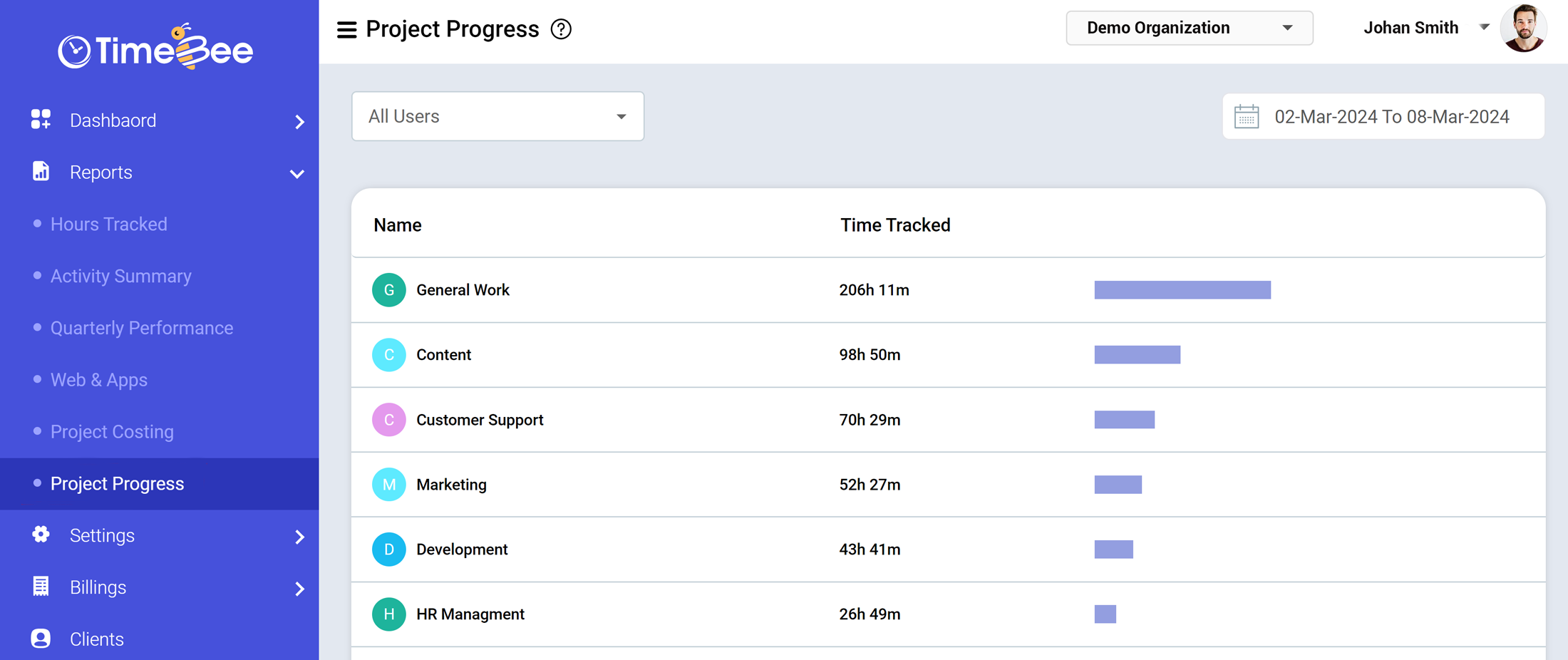
The Project Progress feature initially shows the total time tracked by all users.
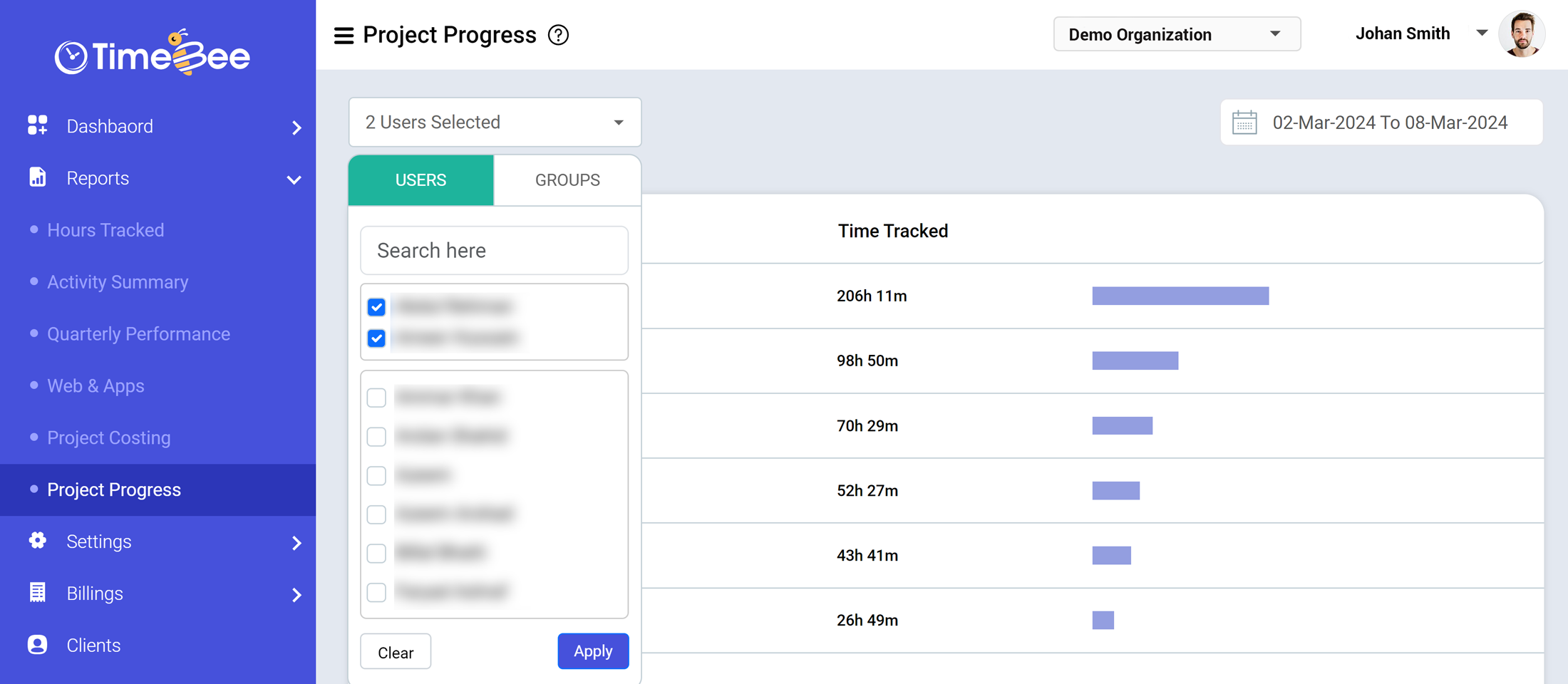
To view individual user or group progress, you can click on the menu labelled ‘All Users’. From the dropdown menu, you can select individual users or groups created by the admin in the ‘Group’ settings.
After selecting individual users of groups, click ‘Apply’ to view how much time they have logged in various tasks.
You can check the total hours tracked for a specific time frame by clicking on the Calendar button in the top right corner. Select the period you want to view i.e. days, weeks, or months, and click OK.
To check the details of the tracked activities and tasks, click on a specific project name. For example, by clicking on ‘Content’, you can see the breakdown of subtasks.
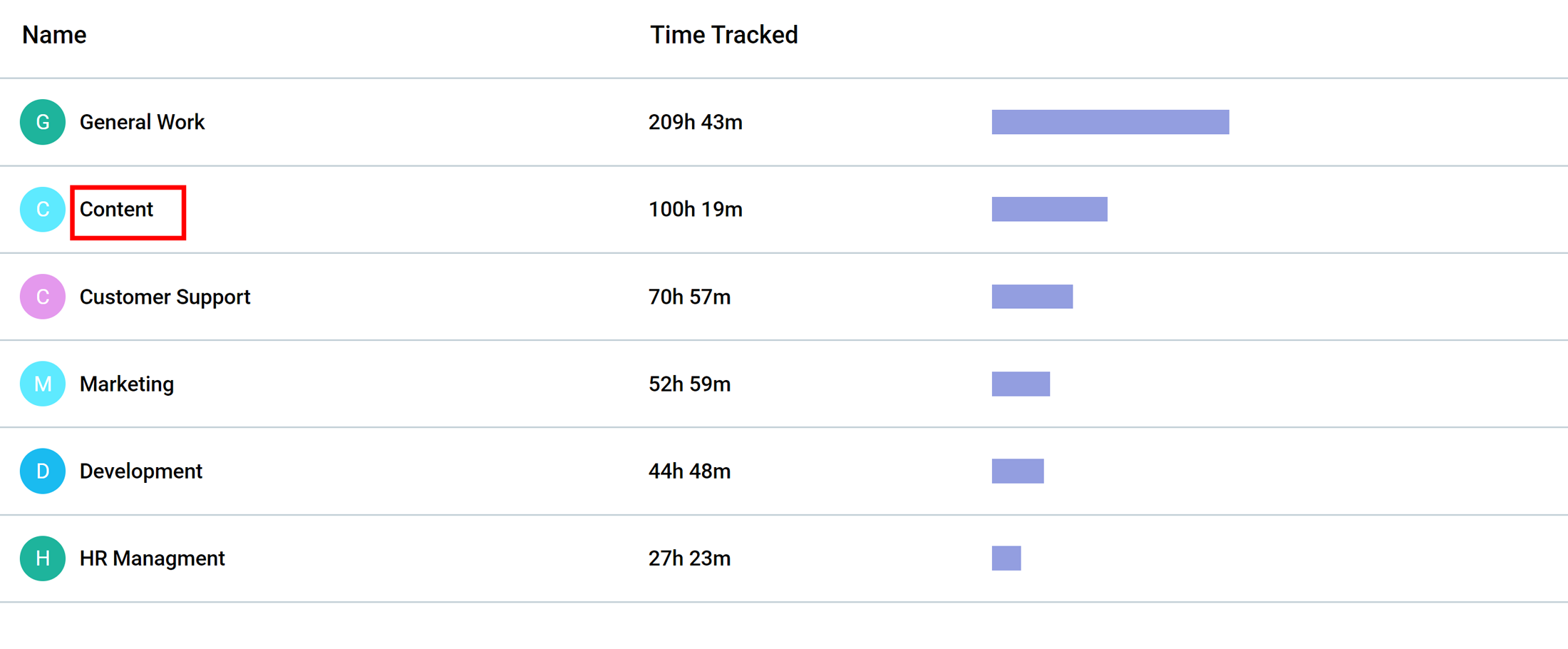
As you can see, there are Writing and Other Work listed under Content. TimeBee lists the total hours tracked for each of these tasks, per user or group selected in the previous user filter.
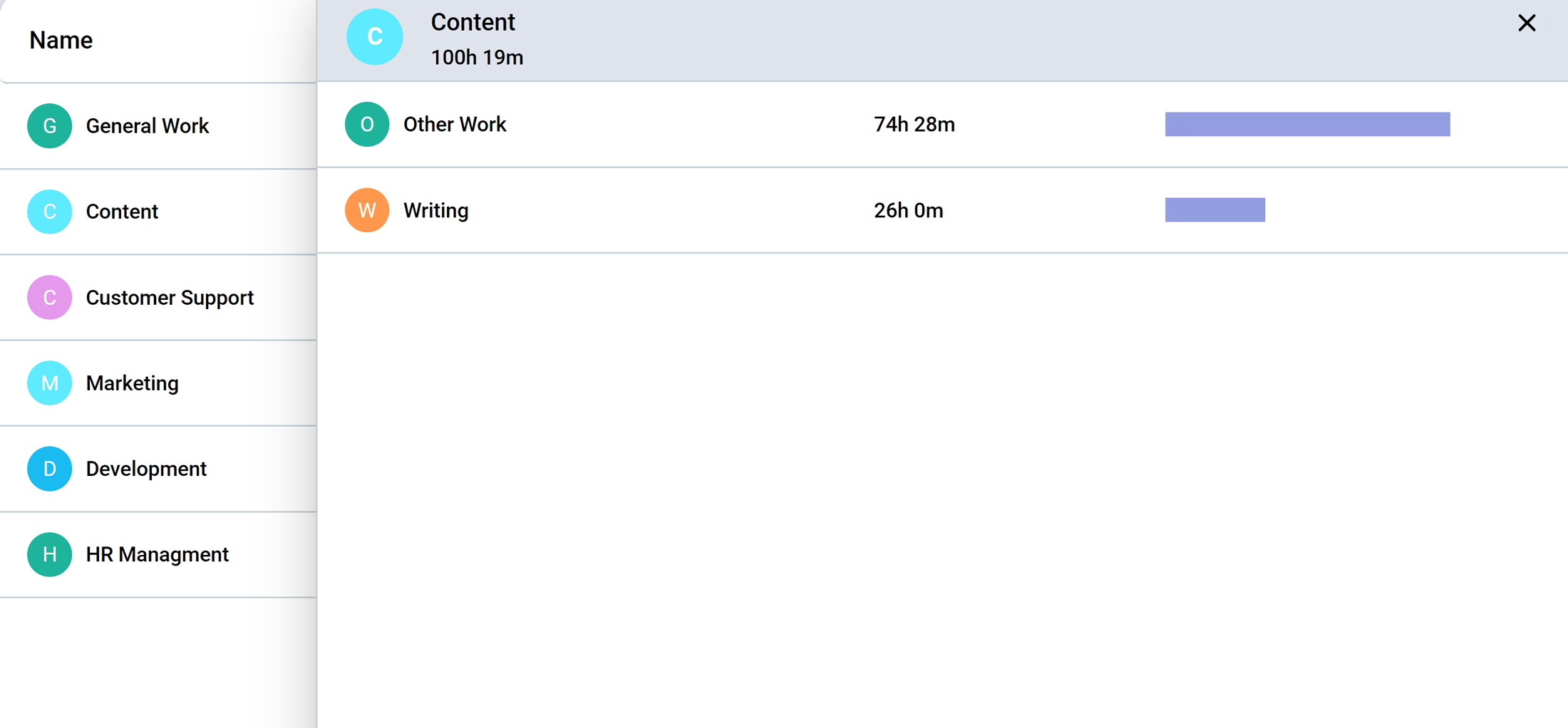
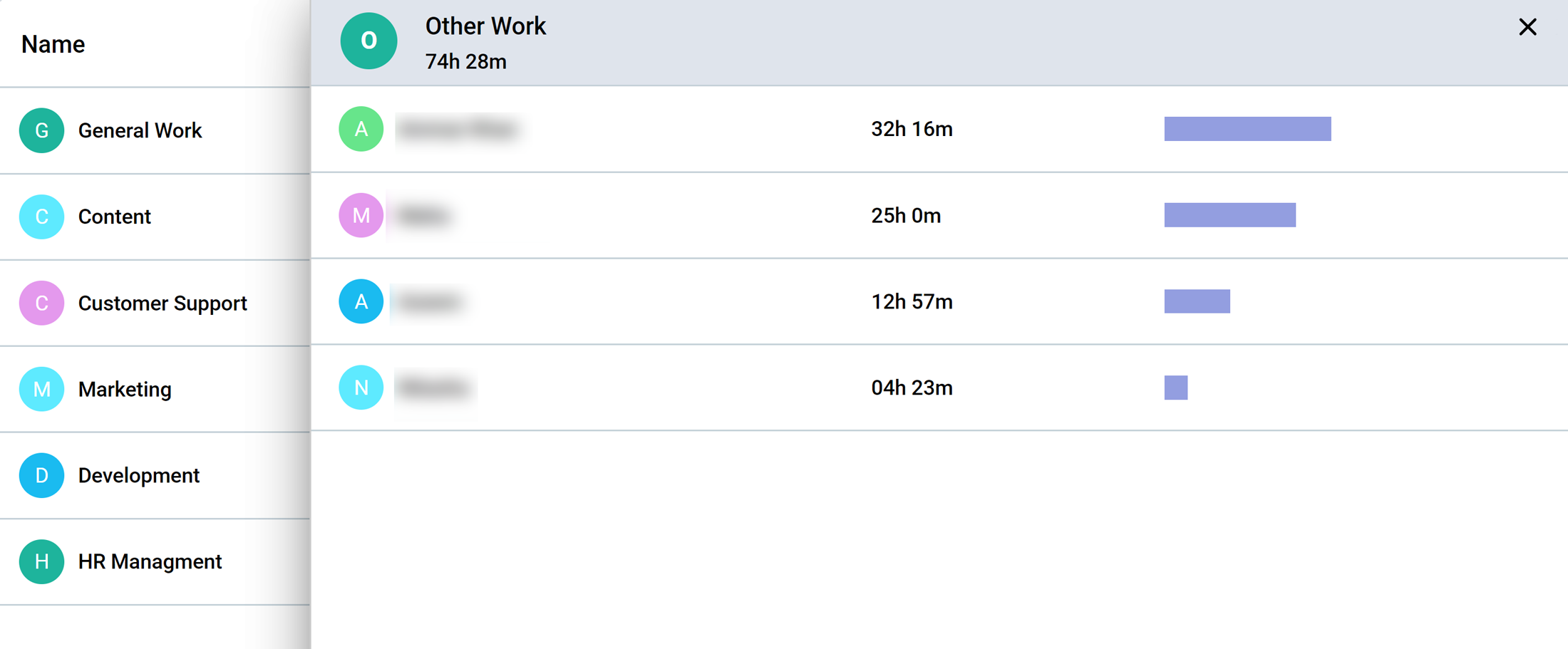
Click on the task name to see who logged in the most hours for each task. For example, clicking on ‘Other Work’ will show how many users worked on it and how much time each person contributed to the total tracked hours.
Try it free for 14 days and see how it can be your savior!


